

Secure email
How to open your secure emails from us
Your security is our top priority
So, we use a secure email portal to protect customer communications. This means only you can access the information we send you, so your data is protected. It also ensures we are compliant with data protection regulations.

Open the email
When we send you a secure email or document, you'll receive a notification email from Mimecast.
Select the link
Select the link in the email to open the secure email portal.
Log in or register
First time using our secure email portal - Enter your email address and create a memorable password to register.
Used our secure email portal before - Log in using your existing password.
View your message
Once logged in, you can view, download and save the secure email or document.
Guidance on how to use our secure email portal
If this is the first time that you are receiving a secure email, you will receive the email notification shown below. It is particularly important that you retain this email until you can successfully login to the platform. If you request a password reset, you will also receive this email notification. This will work on both computer browsers and mobile devices.
Please note: the email sender will be the name of the sender or team name, @lv.com.
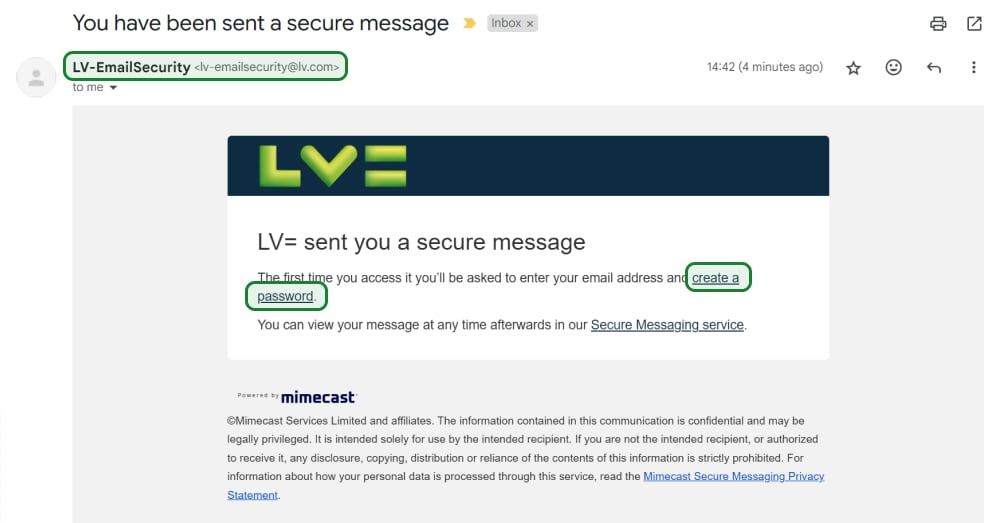
To access the Secure Messaging System, click the ‘create a password’ link within the email which will require you to choose a secure password.
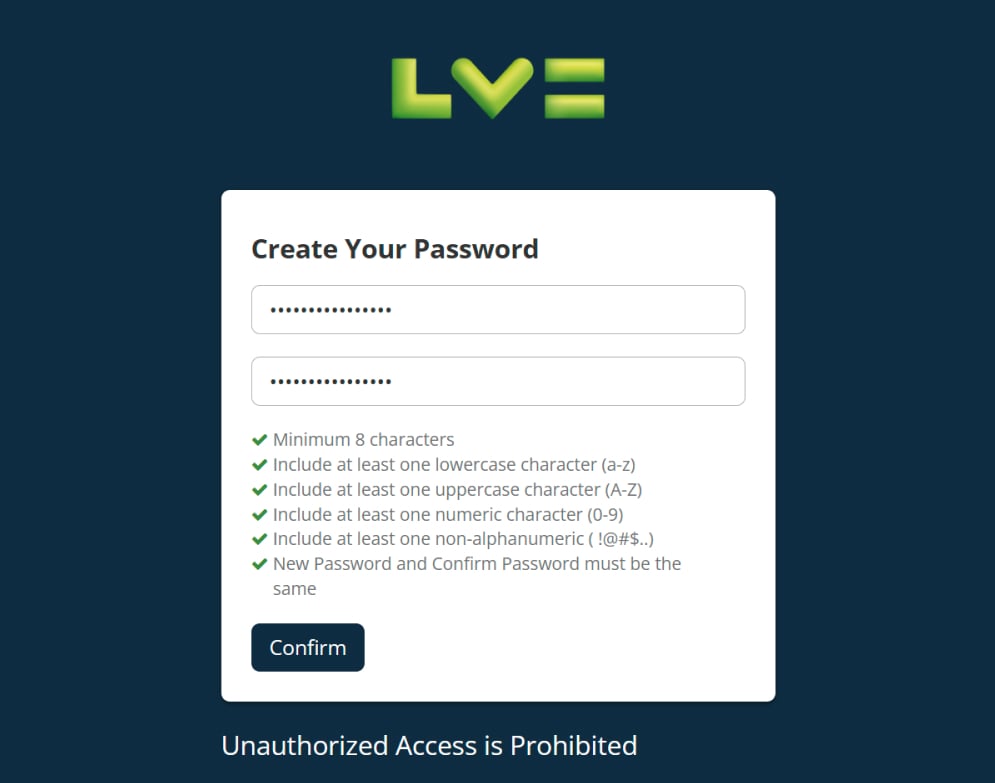
After creating your password, you’ll be taken to the login page where you’ll be asked to login using your email address and password you just created.
|
Please note: Access to the Secure Messaging System is intended for the sole use of the intended recipient. Login details should not be shared with other parties. |
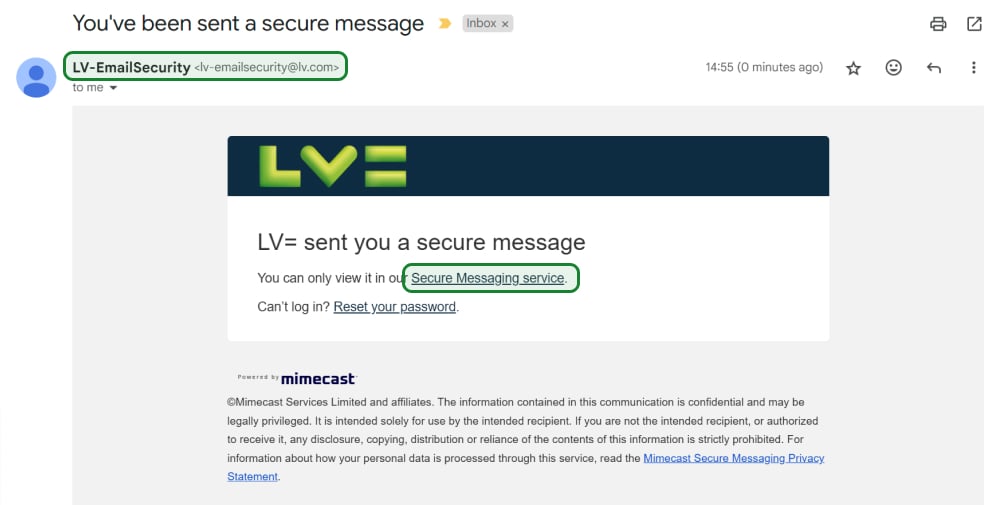
If you have already created a profile within Mimecast, you will receive the email notification shown below. To access the Secure Mail System, you will need to click the ‘Secure Messaging Service’ link within each subsequent email that you receive. There is also a link within this notification where you can reset your password, if needed.
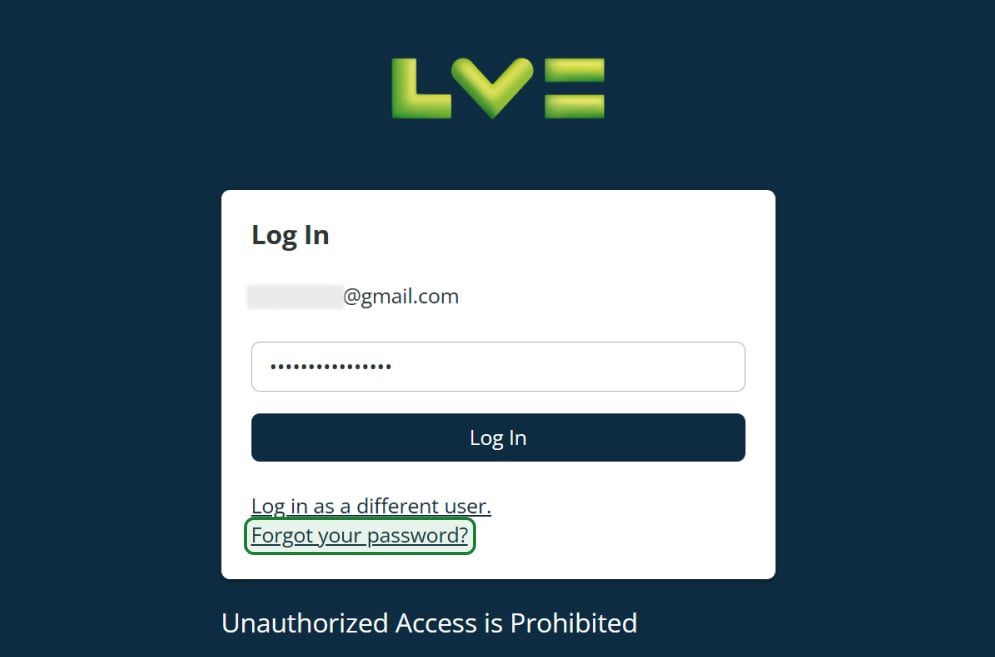
To reset your password enter your email address in the below field, click ‘Next’ and then click ‘Forgot your password?’.
Now you’re authenticated securely, you can view secure emails sent to you within the portal:
Click on the email to view the content.
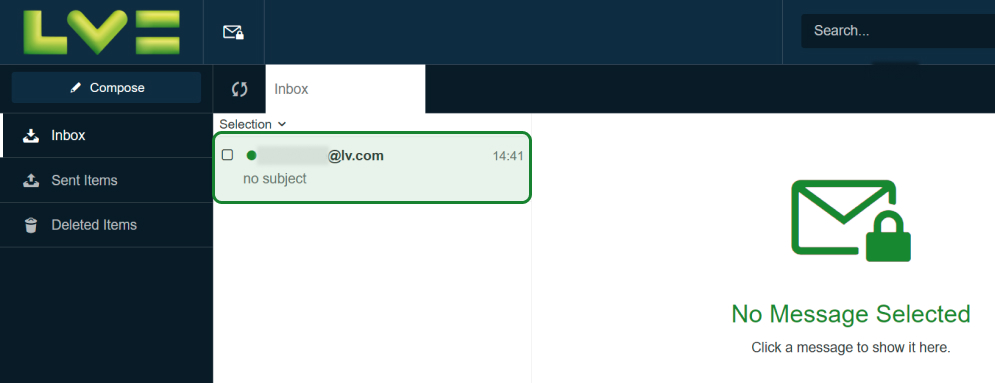
We recommend that you download any documents or print the required information as these emails do have a lifetime of 182 days (6 months) from date of LV= sending.
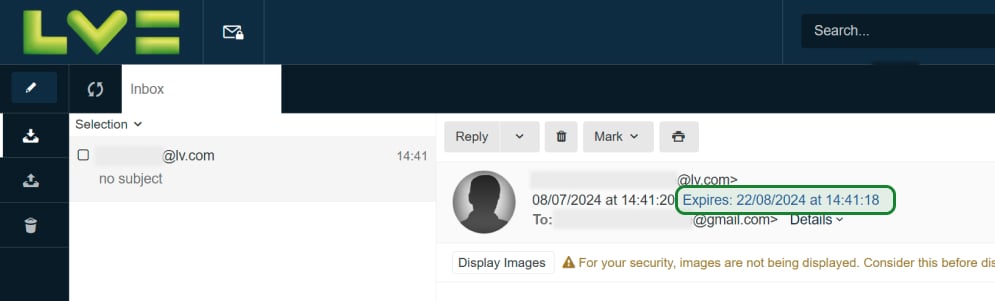
Each email has an expiration date which is indicated on the email in blue text.
Frequently asked questions
It is safer for you to download your attachments and documents and store them in a secure folder. We recommend that you download any documents or print the required information as these emails do have a lifetime of 45 days from date of LV= sending.
After the expiry date you would need to request the email to be resent if you have not downloaded it by then.
Mimecast supports Windows, Mac, Android and IOS.
There is no special systems or readers required to access the system or your attachments.
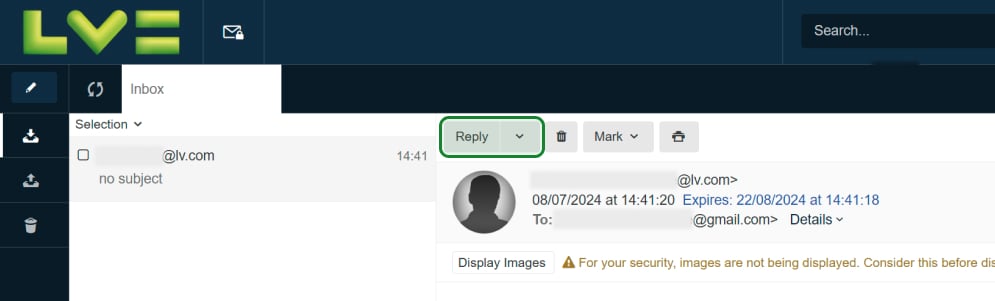
Yes, to reply to a secure email that you have received from LV=, simply click “reply” and type your response in the free-text field shown below.
Yes, to attach a file to the email you’re composing, simply click the “attach” button on the top, right hand side of the email screen – shown below.


